FREE BROWSER-BASED EDITOR

Passport Photo Editor Online: Resize and Adjust

Make practical edits to a passport, visa, or ID photo before you submit or print it. Upload an image or start with the private demo, choose a document size, fine-tune the crop and tone, then download the result locally.

  • Preset sizes for 2×2 inch, 35×45mm, 50×70mm, and custom dimensions
  • Adjust brightness, contrast, zoom, position, and background color
  • Canvas processing keeps the selected image in your browser
  • Export a JPG or PNG while preserving the chosen physical ratio
Open the passport photo editor

Edit a passport photo in your browser

The editor helps with size, framing, and basic tone adjustments. It does not certify that a photo meets every authority's rules, so check the official instructions for your document before submitting.

JPG, PNG, or WebP. The demo image is loaded locally so you can test the controls before choosing your own file.
Demo preview loaded. Choose a file to edit your own photo.
100%
100%
100%
Choose a file or use the demo preview, then update the canvas.

Edited preview

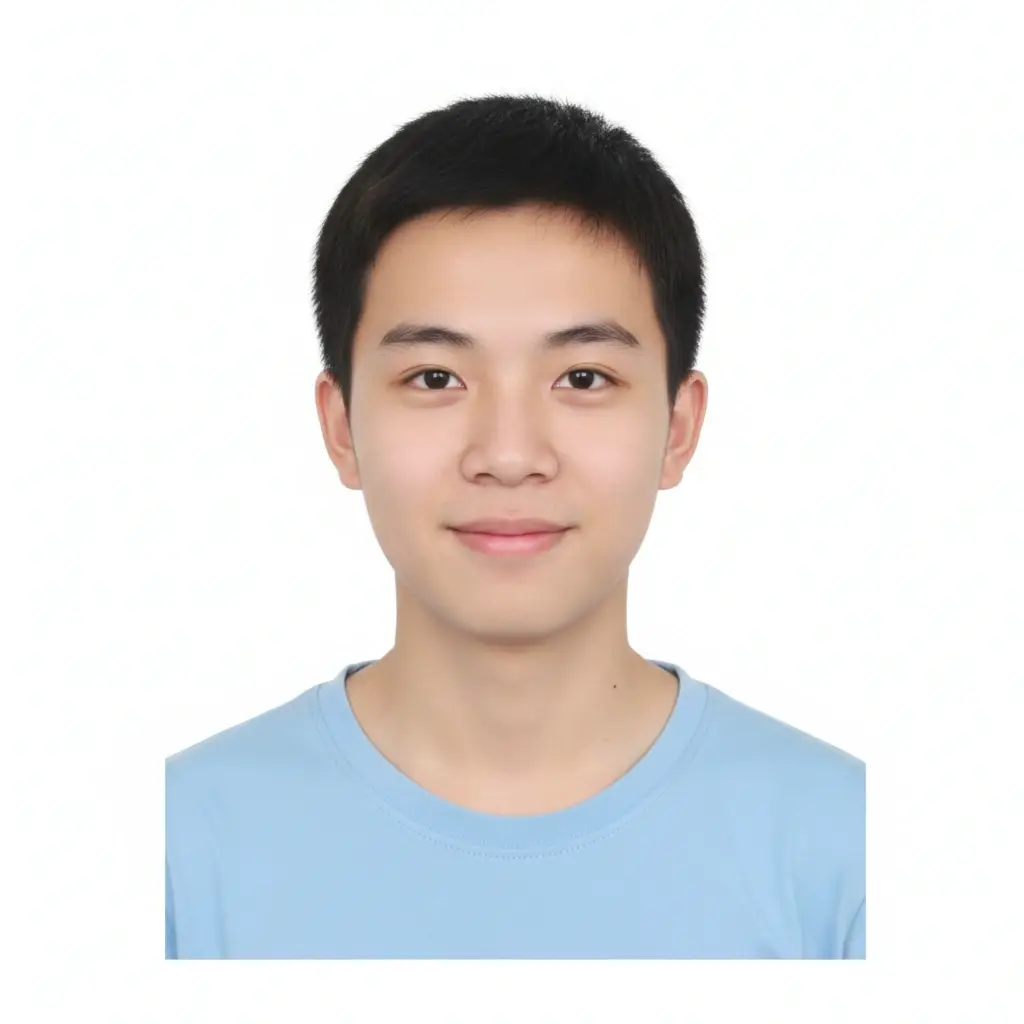
Example result

Review the crop and face position before downloading. Use a ruler or the official digital specification to verify the final size.

Source
Example result
Output
600 × 600 px
Status
Demo preview loaded. Your photo stays in this browser tab.

The editor uses the Canvas API in your browser. Your selected photo is not uploaded by this page. Refresh or close the tab to clear the local preview.

What this passport photo editor can do

A passport photo editor is useful when the source image is close to correct but still needs practical adjustments. This browser tool gives you a defined canvas, document-size presets, a centered crop, and simple tone controls in one place. You can prepare a cleaner working file without opening a full desktop editor or sending the image to an online processing service.

  • Use a recent, sharp source photo with enough space around the head and shoulders.
  • Pick the document size before judging whether the crop looks balanced.

How to use the passport photo editor

Start with the example preview if you want to understand the workflow. Select a size, move the zoom and position controls, and press Update preview. When you are ready, choose your own JPG, PNG, or WebP file. The editor reads the file locally, clears the demo state, and places your photo on the selected canvas. The status message below the controls explains whether the image is ready, being processed, or needs attention.

  • Choose the closest official preset, or use custom millimeters only when the instructions provide a custom size.
  • Use zoom to control how much of the source image fills the frame without stretching the face.

Choosing a passport photo size

The most recognizable preset is 2×2 inches, which equals 50.8×50.8mm and is used for many U.S. passport and visa-style requests. Many other countries and document systems use 35×45mm, while some applications use 50×70mm or a local ID-photo size. The correct choice comes from the application, not from the name of the tool or the country where you happen to print it.

  • 2×2 inch: 50.8×50.8mm, a common U.S. document format.
  • 35×45mm: a common passport, visa, and identity-photo format in many regions.

Brightness, contrast, and background adjustments

Brightness and contrast should be treated as small corrections. If the face is slightly dark because of indoor lighting, a modest brightness increase may make the image easier to inspect. If the source is flat or washed out, a small contrast adjustment can restore separation between hair, face, clothing, and the background. Extreme values can create clipped highlights, crushed shadows, or skin tones that no longer look natural.

  • Keep the face evenly lit; do not use contrast to hide shadows under the eyes or chin.
  • Use white or another stated background only when the document rules allow it.

Privacy, accuracy, and submission limits

This page uses client-side canvas operations for the editor itself. Selecting a file gives the page permission to read it in the current tab so the preview can be drawn; the editor does not need to upload the file to create the JPG or PNG download. The browser may keep temporary image data in memory while the page is open. Refreshing or closing the tab clears the working preview, but it does not erase copies you saved elsewhere.

  • The editor does not perform face detection or certify compliance.
  • The download is generated from the visible preview and the selected output size.

A simple final-check routine

Before submitting, compare the exported image against a short checklist. First confirm the route or form requires the size you selected. Next inspect the head position, eyes, shoulders, expression, background, and visible shadows. Then confirm the file format and pixel dimensions, especially if the application has a maximum upload size. If you are printing, print one test copy at actual size and measure the finished photo with a ruler before cutting the rest.

  • Confirm the official size and whether the authority accepts digital, printed, or both formats.
  • Open the downloaded file and check the image at its native size.

How to edit a passport photo online

  1. Load an image
    Use the example preview to test the controls, or choose a clear JPG, PNG, or WebP portrait from your device.
  2. Select the official size
    Choose 2×2 inch, 35×45mm, 50×70mm, 30×40mm, or enter a custom physical size from the application instructions.
  3. Adjust the frame
    Use zoom and position controls to keep the face centered without stretching the source image or cutting away required shoulders.
  4. Make light corrections
    Use small brightness, contrast, and background adjustments only when they improve clarity without changing identity details.
  5. Download and verify
    Export JPG or PNG, inspect the native file, and compare it with the official photo rules before printing or uploading.

Common passport photo editor presets

PresetPhysical sizeTypical use
2×2 inch50.8 × 50.8mmMany U.S. passport, visa, and ID-style requests
35×45mm35 × 45mmMany passport, visa, and identity-photo systems
50×70mm50 × 70mmSelected larger passport-photo formats
30×40mm30 × 40mmSelected school, membership, and ID applications
Custom20–80mm wide; 20–100mm highA written requirement with a different physical size

The table describes common starting points, not a universal acceptance list. Always use the exact size stated by the authority or form you are completing.

What to check after editing

Physical size

Confirm the selected preset, pixel dimensions, and any printed measurement requirement.

Face position

Inspect eye level, head size, expression, shoulders, and the space around the face.

Lighting

Look for shadows, glare, red eyes, clipped highlights, or a background that changes color.

Submission rule

Read whether the authority wants JPG, PNG, a maximum file size, a print, or a separate digital upload.

Important: A passport photo editor can prepare a useful file, but it cannot guarantee acceptance. Official requirements vary by country, document, age, application channel, and submission method.

Verify official photo requirements

Use official instructions for the document you are applying for. They explain the requirements that an editor cannot validate automatically.

Passport Photo Editor FAQ

It helps you resize, crop, position, brighten, adjust contrast, and export a portrait for a stated passport, visa, or ID-photo size. It is a preparation tool, not an official compliance decision.

Yes. The editor runs in the browser and provides local preview and JPG or PNG export controls. The page does not need to upload your selected photo for these basic edits.

Yes. Choose the 2×2 inch preset, load your photo, adjust the crop and tone carefully, then download the result. 2×2 inches equals 50.8×50.8mm, but the receiving authority may also set pixel, background, and head-size rules.

No. The background control fills the output canvas around the image; it does not automatically cut out hair, clothing, or a complex room background. Use a background-removal or AI ID-photo workflow first when necessary.

No. Acceptance depends on the current rules for your country, document, application channel, and submission method. Check the official instructions for expression, face size, eyes, shadows, background, image age, paper, and file format.

The editor itself uses the Canvas API in your browser and creates the preview locally. Refreshing or closing the tab clears the working preview, but you should still consider how you handle the file after downloading or sharing it elsewhere.

Use the format requested by the application. JPG is common for photo uploads and usually smaller; PNG can preserve lossless pixel data but may be larger. Always check the required extension, dimensions, and maximum file size before submitting.